Leatest Tricks:
Showing posts with label Tips and Tricks. Show all posts

How To Easily Download From Indishare

Sourav 10/17/2015 0
How To Easily Download From Indishare


Indishare Is A very Popular And Worldwide File Sharing Service . Because of Adds Some people Facing Problem to Download from Indishare . So Here I'm Going To Tell You How To Easily Download From Indishare.com .

Step 01 : Go To A Download Link

Go To A Indishare Download Link . You May See A Page With Lots of Adds . Even if You Click The Right Download Button, Pop-up Adds Will Kill You . Here is A Screenshot With Adds .


How To Easily Download From Indishare


Step 02 : Install An Add-on .

Go To Adblock Plus And Install This Add-on . It Can block tracking, malware domains, banners, pop-ups and video ads - even on Facebook , YouTube or Anywhere Else . After Installing You Can See A Red Button in Toolbar .


How To Easily Download From Indishare


Step 03 : Go To A Download Link Again

Now Just Reload That Indishare Link Or Visit Again . You Will See A Clean & Nice Page Without Any Adds . Here is A Screenshot Without Adds .


How To Easily Download From Indishare


Step 04 : Now Easily Download

Now Just Click On "Download Here" & Then "Download" . Check This Screenshot -


How To Easily Download From Indishare

After That Your File Will Start Downloading With Resume Supported .

Animated Social Share Button For Blogger with CSS

Sourav 8/03/2015 0

Blogger Animated Social Share Button

Animated Social Share Button For Blogger with CSS - is a share button that is make your blog more attractive. If you search for share button on internet, then you found many results like Adthis, Share This, Simple Share button, Addtoany etc share button for blogger. Those are mostly helpful and workable.
Today i am share an awesome animated mouse hover social share button for blogger. This share button is fully customized with CSS. Using this share button you should add Facebook, Twitter, Google+, Linkedin and Pinterest share button on blogger blog.
Importance of Social Share Button - No need explain about importance of social share button. However saying, a social share button can grow up visitor for your blog. Social share button help to holding visitor in your blog. 
Now lest start the tutorial. Before starting this keep Backup your template.
Go to blogger dashboard > Template > Edit HTML and find </style>
Copy and past below CSS Code before </style>
/* Share Button */
.post-footer{margin-top:30px;}
.share-post, .multiauthor-box {margin-bottom:50px;}
.share-post ul {padding:0;margin:0;text-align:center;}
.share-post li{list-style:none;display:inline-block;margin-right:10px;padding:0;font-weight:700;text-transform:uppercase}
.share-post li:first-child {font-size:16px;color:#22a1c4;}
.share-post li a{display:block;text-align:center;}
.share-post span{display:none;}
.share-post li a i{display:block;color:#fff;width:40px;height:40px;line-height:40px;font-size:18px;border-radius:40px;font-weight:normal;transition:all .3s;}
.share-post{margin-bottom:30px;border-top:1px solid #eff0f0;border-bottom:1px solid #eff0f0;line-height:52px;min-height:52px;margin-left:-30px;margin-right:-30px}
.share-post li a i.fa.fa-facebook{background:#3b5998;border:1px solid transparent;}
.share-post li a i.fa.fa-twitter{background:#19bfe5;border:1px solid transparent;}
.share-post li a i.fa.fa-google-plus{background:#d64136;border:1px solid transparent;}
.share-post li a i.fa.fa-linkedin{background:#006699;border:1px solid transparent;}
.share-post li a i.fa.fa-pinterest{background:#cb2027;border:1px solid transparent;}
.share-post li a i.fa.fa-facebook:hover{background:#fff;color:#3b5998;border:1px solid #4666aa;}
.share-post li a i.fa.fa-twitter:hover{background:#fff;color:#19bfe5;border:1px solid #2acef4;}
.share-post li a i.fa.fa-google-plus:hover{background:#fff;color:#d64136;border:1px solid #e95247;}
.share-post li a i.fa.fa-linkedin:hover{background:#fff;color:#006699;border:1px solid #017ab6;}
.share-post li a i.fa.fa-pinterest:hover{background:#fff;color:#cb2027;border:1px solid #e33239;}


Now Put the below code where you want to show your share buttons. Basically you should put the share buttons are after <data:post.body/> sections.
<div class='share-post'>
<ul class='entry-share-list clearfix'>
<li>Share This</li>
<li class='facebook_share'>
<a expr:href='&quot;http://www.facebook.com/sharer.php?u=&quot; + data:post.url + &quot;&amp;title=&quot;+ data:post.title' onclick='window.open(this.href, &apos;windowName&apos;, &apos;width=550, height=600, left=24, top=24, scrollbars, resizable&apos;); return false;' rel='nofollow' target='_blank'><i class='fa fa-facebook'/> </a>
</li>
<li class='twitter_share'>
<a expr:href='&quot;http://twitter.com/share?url=&quot; + data:post.url + &quot;&amp;title=&quot; + data:post.title' onclick='window.open(this.href, &apos;windowName&apos;, &apos;width=550, height=600, left=24, top=24, scrollbars, resizable&apos;); return false;' rel='nofollow' target='_blank'><i class='fa fa-twitter'/></a>
</li>
<li class='google_share'>
<a expr:href='&quot;https://plus.google.com/share?url=&quot; + data:post.url + &quot;&amp;title=&quot; + data:post.title' onclick='window.open(this.href, &apos;windowName&apos;, &apos;width=550, height=600, left=24, top=24, scrollbars, resizable&apos;); return false;' rel='nofollow' target='_blank'><i class='fa fa-google-plus'/></a>
</li>
<li class='linkedin_share'>
<a expr:href='&quot;http://www.linkedin.com/shareArticle?mini=true&amp;url=&quot; + data:post.url + &quot;&amp;title=&quot;+ data:post.title' onclick='window.open(this.href, &apos;windowName&apos;, &apos;width=550, height=600, left=24, top=24, scrollbars, resizable&apos;); return false;' rel='nofollow' target='_blank'><i class='fa fa-linkedin'/></a>
</li>
<li><a expr:href='&quot;http://pinterest.com/pin/create/button/?url=&quot; + data:post.url + &quot;&amp;media=&quot; + data:post.thumbnailUrl + &quot;&amp;description=&quot; + data:post.snippet' onclick='window.open(this.href, &apos;windowName&apos;, &apos;width=550, height=600, left=24, top=24, scrollbars, resizable&apos;); return false;' rel='nofollow'><i class='fa fa-pinterest'/></a></li>
</ul>
</div>

Now save the template and see the result.

Note that, Font-awesome must be added in your template. Otherwise social icons are may not shown. If not added then copy the below script and past before </head> tag.
<script type='text/javascript'>
//<![CDATA[
//CSS Ready
function loadCSS(e, t, n) { "use strict"; var i = window.document.createElement("link"); var o = t || window.document.getElementsByTagName("script")[0]; i.rel = "stylesheet"; i.href = e; i.media = "only x"; o.parentNode.insertBefore(i, o); setTimeout(function () { i.media = n || "all" }) }
loadCSS("http://fonts.googleapis.com/css?family=Open+Sans:400italic,400,600,700,300");loadCSS("https://maxcdn.bootstrapcdn.com/font-awesome/4.3.0/css/font-awesome.min.css");
//]]>
</script>


Now save template again and see the result. If you found any problem then inform in comment section. Thanks....

How To Add Time Ago Format In Blogger Post Date

Sourav 7/28/2015 0
timeago for blogger
You might seen "a second ago" or "2 minute ago..." in social networking site especially twitter and Facebook. This represent the time in timestamps which was posted before (a certain time) instead of showing full date like 17/08/2013 10:45 pm.

When you post an article, it will display the minutes ago, so reader can understand that your post was published little earlier. Exactly blogger doesn't have this feature (timeago format), but blogger does provide time with date, name of month etc.

Today I'm going to show you how to add timeago time format in blogger. This timeago script will display the second, minutes, hours, days and years (ago) instead of full date. It automatically update the timestamps. This plugin was developed by Ryan McGeary of Yarp. Here I have converted that code for blogger platform to easily implement in blog.

Live Demo: please go to main page of this blog and check below each post box.
For example: few other timeago plugin show "1 minute ago" even though the page was opened 10 minutes ago. Unlike this plugin update the timestamps automatically without refreshing the webpage. Just do the the following steps to add timeago in blogger.
  1. Go to blogger > Template > Edit HTML.
  2. Find  </head> tag and add the following code before it.
  3. <script src='http://code.jquery.com/jquery-latest.js'></script>
    <script src='http://timeago.yarp.com/jquery.timeago.js'></script>
    <script>
        jQuery(document).ready(function($){
         $("abbr.timeago").timeago()
    
        });
        </script>
    
    [optional: Remove the code in line #1 if you have already implemented jQuery in your blog
  4. Now find code similar to below code. May be you couldn't find exact below code in your template because different custom blogger template provider use their own mark up for the timestamps. So you have to post your blog URL in comment below, then I can give you the exact code that you want to find in your blog.
  5. <h2 class='date-header'><span><data:post.dateHeader/></span></h2>
    
  6. Replace above code with following code
  7. <abbr class="timeago" expr:title="data:post.timestampISO8601"><data:post.dateHeader/></abbr>
    
  8. Now Save your template. That's all

Please provide your blog url in comment if you can't find the code in 3rd step. Now your blog can display minutes ago as well. Instead of showing the date. But I recommend to show timeago in main page only. Not in post page. Post your feedback about this plugin in comment.

How To Remove Showing Post With Label In Blogger

Sourav 7/28/2015 0
For any default Blogger layout, the "Showing posts with label" message shows up above the posts each time you click on a label link. As it's a pretty useless and annoying message, many people like to have it removed. If that is your wish, just follow the tutorial below:

Removing "Showing post with label...show all posts"

Step 1. Go to Dashboard - Template - Edit HTML (if necessary, click on Proceed button)


Step 2. Click anywhere inside the template code, then search - using CTRL+F - this code:
<b:includable id='status-message'>

After you found it, click on the sideways arrow next to it, to expand the rest of the code.

Screenshot:

Step 3. Below is this code that you need to remove - along with the first one, as well:
  <b:includable id='status-message'>
      <b:if cond='data:navMessage'>
      <div class='status-msg-wrap'>
        <div class='status-msg-body'>
          <data:navMessage/>
        </div>
        <div class='status-msg-border'>
          <div class='status-msg-bg'>
            <div class='status-msg-hidden'><data:navMessage/></div>
          </div>
        </div>
      </div>
      <div style='clear: both;'/>
      </b:if>
    </b:includable>
Screenshot 

 Step 4. Replace it with this one:
<b:includable id='status-message'>
<b:if cond='data:navMessage'>
<div>
</div>
<div style='clear: both;'/>
</b:if>
</b:includable>

Step 5. Save the template. Now view your blog and click on some label....there should be no box anymore.

Finally you done !

Changing "Post a Comment" With Image and Text

Sourav 7/27/2015 0
Changing "Post a Comment" With Image and Text-

customize post a comment with text

1. Go to blogger Dashboard and open template editor >

2. Find the bellow code
<h4 id='comment-post-message'> <data:postCommentMsg/></h4>
 3. Replace this code   data:postCommentMsg With one of the image link from bellow >

replace post comment image
img src='https://blogger.googleusercontent.com/img/b/R29vZ2xl/AVvXsEgrHzwYgh8pFQRBJoGctGiE-HoC0aNsb_K7H80PMeSUdQ-rTKTbKmADirp0jMozNLSvxrpfOWNp_6dv_Tvi56PcL70iDTpQqmvCZDXDWbxLtSus2Ta0SGfe1OnIyf2UmThuv6H-tZsPKRI/s1600/animated+comment+arrow+7.gif'
or
img src='https://blogger.googleusercontent.com/img/b/R29vZ2xl/AVvXsEjVGKaD-GCAHq5yKlNYoqbJ3ek7-STuuDl53hH7sqFdS67PdOKfjPQCNPll5iotxip1EpPVt3WLgST2gRFuPG4Gqgv08ByOuWbrdE7Sgk70CEdETtgwgzppHUJfjvGRA-fgn86JeUbuXaI/s1600/colored+comment++2.png' 
or
img src='https://blogger.googleusercontent.com/img/b/R29vZ2xl/AVvXsEgv1rF11LNPbXEXl7MQVYWUad8yMx4aY8CR827ND0k5MadmVZaWymnZs8MBw9ZnRqScq_KA2nFB2VAFUY_1BZRGUzC9YpKBegptP3DeUOdpWN4L4GZimmifQQCvuQgkO0C0KtTyKeuD40U/s1600/comment+9.gif'
or
img src='https://blogger.googleusercontent.com/img/b/R29vZ2xl/AVvXsEhMfSkm8syMH06spmTH7VlFIUreCTAktkGbd805IGB7PREIdj3naJWjj08RrnuBIUfKQgTZSzUmLurZ8xMnRdhngctRHhK43NWLihuuPVhcV95VKdBZk8n4HYnj8sVyKE-wf8ImNRwUUF4/s1600/comment+cloud+3.png'
or
img src='https://blogger.googleusercontent.com/img/b/R29vZ2xl/AVvXsEhSVglZDwoEHUOg95H74MW27_Q-v4I1_kyavpA1bj_oEiSqBFMlYgh8JCEPJjkpVjdo5lC4cW_NGcaP1DdyF8CT_h8N9opuQJxYswdfFdKEDNUuvzRU9vmKgyoeibPkPQI-uA7KO_wE5lo/s1600/leave+a+comment+8.png'
or
img src='https://blogger.googleusercontent.com/img/b/R29vZ2xl/AVvXsEjhCG661wixk0miUBe4agFW-xrj1RkH-wLoFiWVndG5NypZmJl_qAhni5dQ_o9UFewUPtLT34zOMHpZaqTslJULn1InaO93dS8F7chrmPi4m8o3kPql3qPXD8Q82XEmtUY7Z344eyPgcB0/s1600/comment+here+blue+4.gif'
or
img src='https://blogger.googleusercontent.com/img/b/R29vZ2xl/AVvXsEhpjZCAYkLF-vfDARhR2YtuTdTIWN2sMfnQphtShc9eDFTMsfN9cNm0xRwWzlTNR7dzHC6CqGHBeolOPM7VjWFFb_r7EIUViVHXVGpYeYTPYbz9D4T481lUXfxVnnx69JuRpLkwSNro_40/s1600/leave+a+comment+1.png'
or
img src='https://blogger.googleusercontent.com/img/b/R29vZ2xl/AVvXsEhWygpnQIIV8yA5Ik74rbm4j2QV2rOCl1ab6V1GTzqbAW34XH9y5ju-gyIhDbRS5_x74qhgQarrpsgd93KIRAsmesHAuNC24jvd8gOwNResjf6ldRkTJwNCN2RDVKv-mq-xLKSUTBjhy6I/s1600/comment+here+flowers+5.png'
or
img src='https://blogger.googleusercontent.com/img/b/R29vZ2xl/AVvXsEiFsaBz94-d-DG4_8PqYSN3fRZ6wkRr23OPAlsD04wBc516RlGr-yGchKkmOImtTlYzAVhH_YH5V2prYNSDqpJixNEwWhQy8RFbJW02kSSUVvWhF-iDW1AAvhxk-DBPCS3N-aXBji3oJJnU/s800/what-question-mark.gif'
or
img src='https://blogger.googleusercontent.com/img/b/R29vZ2xl/AVvXsEivBeqAKOnYi-JWWoUw811oTD86bGSTUzQqc2A_huabjAM4ZYHZsCfVnheXtRD3_zBF9aN-6vhct9gXaKQRflEF_W6e0Em_hO4LYjjAsj3_nGX6hGTk90TUstA4GrTqGcjC5v8qUSvZJuA/s1600/thinking+man.gif'

4. If want to add some text beside this then you can write

<h4 id='comment-post-message'> <data:postCommentMsg/>Your Text Here</h4>
5. Now save template and chek you have done it.

Optional:

you can design comment h4 if you want then code is:

 #comments h4 {
color: #4E555A;
font-size: 23px;
font-family: Arial, Verdana !important;
line-height: 1.6em !important;
font-weight: bold;
margin: 0 0 20px;
padding: 10px 0 0;
}

 Thanks for reading this post.

Create High PR do follow backlink with google Gmail

Sourav 7/27/2015 0

2015 do follow backlink with gmail

Create High PR do follow backlink with google Gmail - in this tutorial i will shown you how to create high PR do follow backlinks with Gmail. Gmail is most popular used mail service by Google. Quality backlink is most important for SEO and without SEO (Search Engine Optimization) you may not get better results from search engine.
 
 
You can build a quality and high PR do follow backlink using Gmail signature. I am also using gmail and build a quality backlink by google gmail. Now lets start the tutorial.

How to create do follow backlink with Gmail

  • Login into Gmail
  • Click on Setting Icon
Create High PR do follow backlink with google Gmail
  • Scroll down and find "Signature" section
  • Now click on Link tab
Create High PR do follow backlink with google Gmail
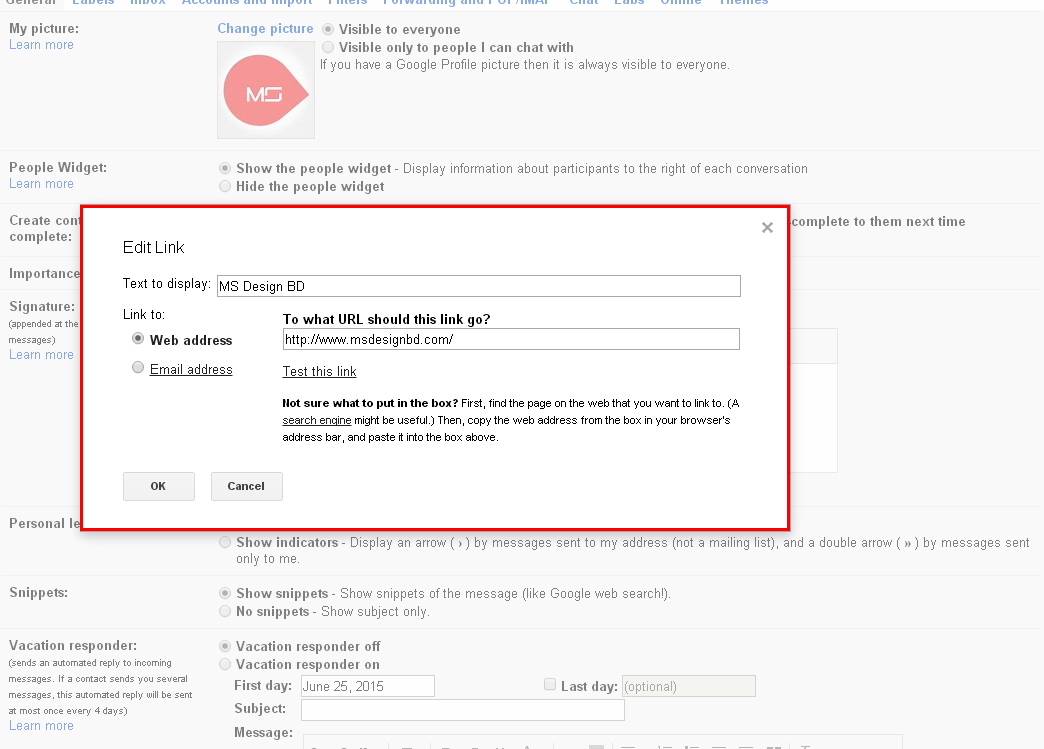
  • Now type your website name and website url and click OK button.

Create High PR do follow backlink with google Gmail
Now click Save changes from below. You'r done.
If you found any problem then inform me in comment section. Keep sharing our posts. Thanks...

Pop up Email Subscribe box for Blogger

Sourav 7/27/2015 0
blogger pop up email subscribe box

Pop up Email Subscribe box for Blogger - is a blogger widget using jquery. This subscription form created with css3 and jquery. In this tutorial i shared how to add pop up email subscription box for your blogspot blog.
 
By adding this widget, you should easily increase your blog readers. It's a better way for increase blog readers. I hope this fresh pop up email subscribe box help you to increase blog readers. Now lets start the tutorial.
Go to blogger dashboard > Template > Edit HTML and past the below CSS Code before </style> 
#sub-box {display:none;background:rgba(0,0,0,0.9);width:100%;height:100%;position:fixed;top:0;left:0;z-index:99999;}
#boxclose {width:100%;height:100%;-webkit-transform:translateZ(0);}
#boxview {background:#fff;border:8px solid #fff;width:600px;height:250px;position:absolute;top:33%;left:28%;}
#closebox {float:right;cursor:pointer;position:absolute;right:-1px;top:-2px;}
#closebox:before {content:&quot;Close&quot;;padding:5px 8px;background:#fff;color:#48cb7a;font-weight:normal;font-size:12px;font-family:Open sans;}
#boxlink,#boxlink a.visited,#boxlink a,#boxlink a:hover {color:#aaaaaa;font-size:9px;text-decoration:none;text-align:center;padding:5px;}
#subscribe-box {width:600px;height:250px;background-color:#02BA74;}
#subscribe-box p {font-family:&#39;Open Sans&#39;;font-size:18px;color:#fff;line-height:20px;padding:10px 20px 0 20px;margin:0;}
#subscribe-box .emailfield {padding:0px 20px 10px;}
#subscribe-box .emailfield input {background:#f9f9f9;color:#bbb;padding:10px;margin-top:10px;font-size:13px;font-family:&#39;Open Sans&#39;;width:96.3%;border:0;transition:all 0.4s ease-in-out;}
#subscribe-box .emailfield input:focus {background:#fff;outline:none;color:#888;}
#subscribe-box .emailfield .submitbutton {background:#444;color:#fff;text-transform:uppercase;font-weight:normal;font-size: 16px;border:none;outline:none;width:100%;cursor:pointer;border-radius:3px;transition:all 0.4s ease-in-out;}
#subscribe-box .emailfield .submitbutton:active {outline:none;border:none;background:#fff;color:#e25734;}
#subscribe-box .emailfield .submitbutton:hover{background:#fff;color:#444;}
Now Save Template.
Now go to Layout > Add a gadget > HTML/Javascript and past the following below code.
<script type='text/javascript'>
//<![CDATA[
jQuery.cookie = function (key, value, options) {
// Pengaturan cookie
if (arguments.length > 1 && String(value) !== "[object Object]") {
options = jQuery.extend({}, options);
if (value === null || value === undefined) {
options.expires = -1;
}
if (typeof options.expires === 'number') {
var days = options.expires, t = options.expires = new Date();
t.setDate(t.getDate() + days);
}
value = String(value);
return (document.cookie = [
encodeURIComponent(key), '=',
options.raw ? value : encodeURIComponent(value),
options.expires ? '; expires=' + options.expires.toUTCString() : '', // use expires attribute, max-age is not supported by IE
options.path ? '; path=' + options.path : '',
options.domain ? '; domain=' + options.domain : '',
options.secure ? '; secure' : ''
].join(''));
}
// cookie
options = value || {};
var result, decode = options.raw ? function (s) { return s; } : decodeURIComponent;
return (result = new RegExp('(?:^|; )' + encodeURIComponent(key) + '=([^;]*)').exec(document.cookie)) ? decode(result[1]) : null;
};
//]]>
</script>
<script type='text/javascript'>
jQuery(document).ready(function($){
if($.cookie('popup_facebook_box') != 'yes'){
$('#sub-box').delay(3000).fadeIn('fast');
$('#closebox, #boxclose').click(function(){
$('#sub-box').stop().fadeOut('fast');
});
}

});
</script>
<div id='sub-box'>
<div id='boxclose'>
</div>
<div id='boxview'>
<div id='closebox'>
</div>
<div id='subscribe-box'>
                 <center><p>Subscribe for Latest Update</p></center>
             <div class='emailfield'>
              <form action='http://feedburner.google.com/fb/a/mailverify?uri=YOUR-USER-NAME' method='post' onsubmit='window.open(&apos;http://feedburner.google.com/fb/a/mailverify?uri=YOUR-USER-NAME, &apos;popupwindow&apos;, &apos;scrollbars=yes,width=550,height=520&apos;);return true' target='popupwindow'>
               <input type='text' name='name' onblur='if (this.value == &quot;&quot;) {this.value = &quot;Your Name&quot;;}' onfocus='if (this.value == &quot;Your Name&quot;) {this.value = &quot;&quot;;}' value='Your Name'/>
               <input type='text' name='email' onblur='if (this.value == &quot;&quot;) {this.value = &quot;Your Email&quot;;}' onfocus='if (this.value == &quot;Your Email&quot;) {this.value = &quot;&quot;;}' value='Your Email'/>
<input name='uri' type='hidden' value='YOUR-USER-NAME'/>
<input name='loc' type='hidden' value='en_US'/>
                <input class='submitbutton' type='submit' value='Subscribe Now!'/>

              </form>
             </div></div> 
</div>
</div>

Note: YOUR-USER-NAME replace with your feedburner user name.

That's it. Now refresh your page and see result. If you found any problem then inform me comment section and if you think our post is helpful then do not forget to share with others. Thanks...

Limitation of Blogpost blog - Complete list

Sourav 7/27/2015 0
Blogger limitation

Limitation of Blogpost blog Complete list - Today i am share a list of Blogspot blogger limits. We know, blogspot is free blogging flatform. Blogspot give us some awesome features for free. But not enough. Google Blogger try to give us a lot of room to play here on Blogger, so you'll see that a lot of the important "limits" here aren't really very limiting. But just in case you were wondering, here is some information about what a single Blogger account will hold.

1. Limitation Blogger Account

  • Total Blogs: 100 per account
  • Long info "about me" (on account profile page blogger): 1200 characters
  • Info Hobbies and passions length: 2000 characters
  • Blog which were followed maximum amount per account: 300 Blog
  • The width of the image was uploaded through the post editor: 1600px maximum. That broader picture can still be uploaded but then automatically resize (scaled down) to 1600px
  • The width of the image that was uploaded through the Template Designer (background): No restrictions
  • Pictures by heavy file size:
  • Images are uploaded through the post editor: 8 MB
  • Images are uploaded through the Template Designer (background): 300 Kb
  • Pictures uploaded via mobile devices: 250 Kb
  • Image hosting capacity (in Blogger through a partnership with Picasa Web Albums): 4 GB per account.
  • Bandwidth hosting images: No restrictions.

2. Limitation Blog

  • Length of title / name of the blog: 90 characters
  • Long subdomain name (subdomain.blogspot.com): 37 characters
  • Long blog description (the description on the header): 500 characters
  • The number of members per blog: 100 people
  • The number of blog readers (for personal blogs): 100 people
  • Number of posts: No restrictions.
  • Number of posts displayed on pages list posting (homepage, label, archive) is determined by the choices on Settings> Formatting> Show at most. If the chosen day (day), then the maximum limit on a single page display is 1 MB.
  • Number of labels: 5000 pieces per blog unique label

3. Limitation Post

  • The length of each post: No restrictions
  • Weight file for each post: There is no limit, however, as already mentioned above, the file post more than 1 MB may cause parts above 1 MB is displayed on the next page (multiple pages for one post).
  • The number of labels per post: 20 unique label.
  • Number of comments per post: No restrictions
  • Posting the file name length (file name on the back post url): 39 characters
 
Source: MS Design
adss